
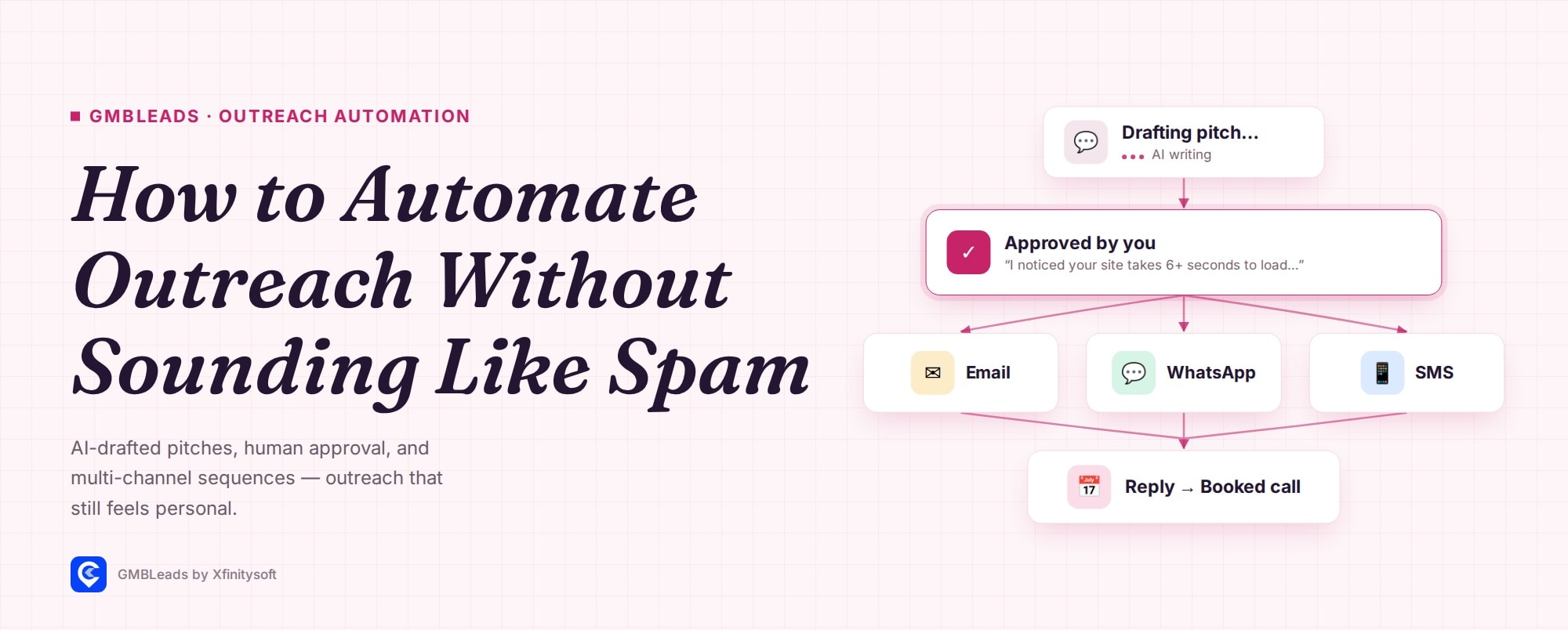
How to Automate Outreach Without Sounding Like Spam — a sequence diagram on a light rose background showing an AI-drafted pitch card, an emphasized human-approval checkmark card, fanning out to Email/WhatsApp/SMS channel cards, merging into a single arrow into a Reply → Booked call card, italic serif headline in dark indigo, real AutoPitch logo in the footer

Automated local business outreach is the practice of using AI to draft, and software to send and track, cold outreach to local businesses — while keeping a human in the loop before anything actually sends. Done badly, it reads as an obvious mail-merge. Done well, the first message references something real and specific about the business, which is the difference between a reply and a spam-folder entry.

Why Most Automated Outreach Reads as Spam

The tell isn’t automation itself — it’s genericness. “I came across your business and wanted to reach out” could be sent to anyone. A message that says “your site takes 6+ seconds to load on mobile” could only have been written about this business. The fix isn’t writing more messages by hand; it’s making sure whatever writes them has something specific to say.

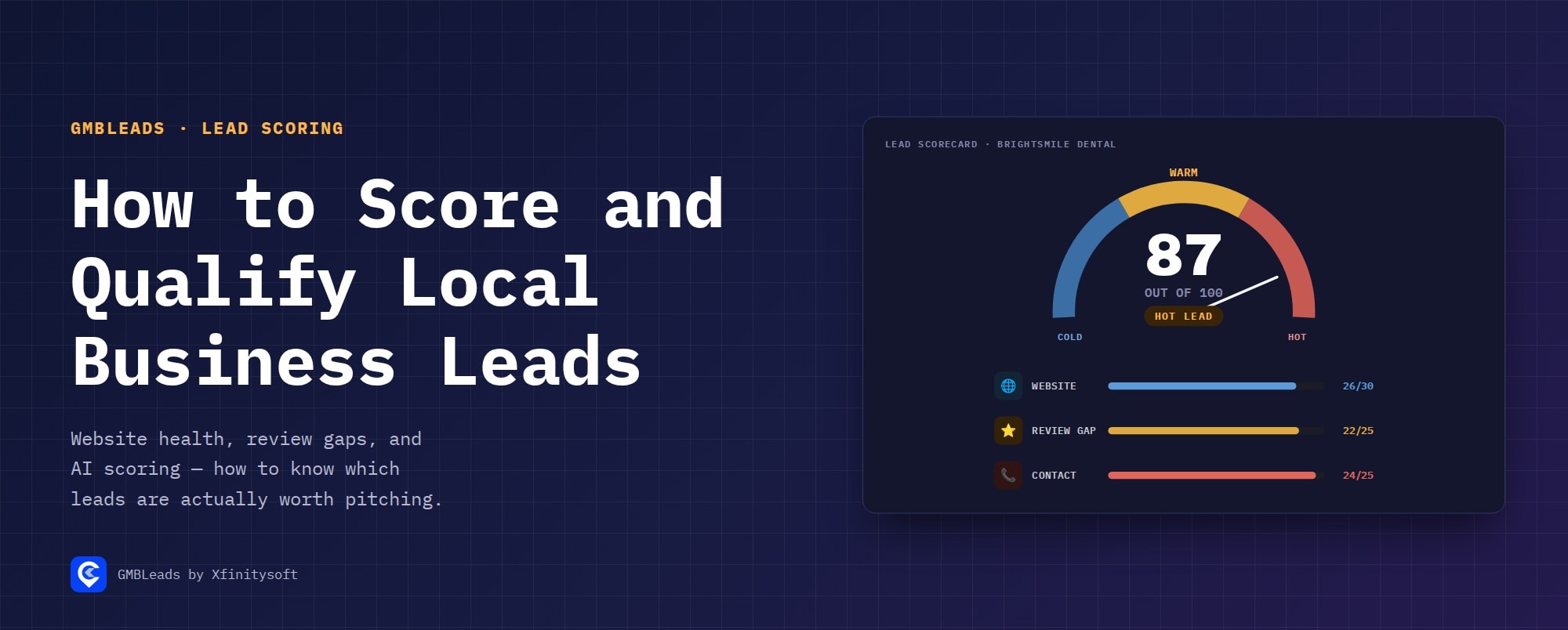
This is Step 3–4 of the full pipeline — see Google Maps Lead Generation for Agencies for how outreach fits after scraping and How to Score and Qualify Local Business Leads Automatically for where the specifics come from.

Step 1 — AI Drafts From Real Findings
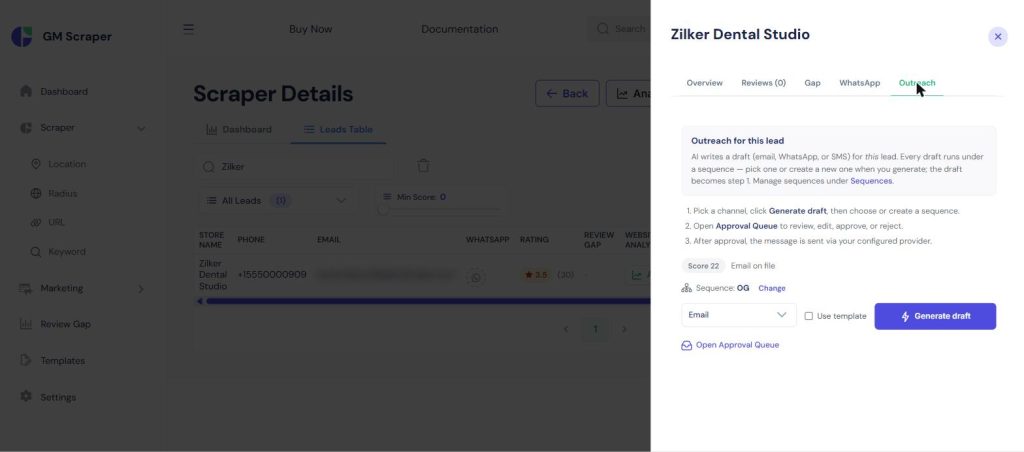
Outreach tab for a lead with no existing draft, showing a channel selector set to Email and a Generate Draft button, sequence assigned as OG

Pick a channel, click Generate, and the draft references the specific issue found during scoring — a slow site, a missing SSL certificate, a review gap versus nearby competitors.
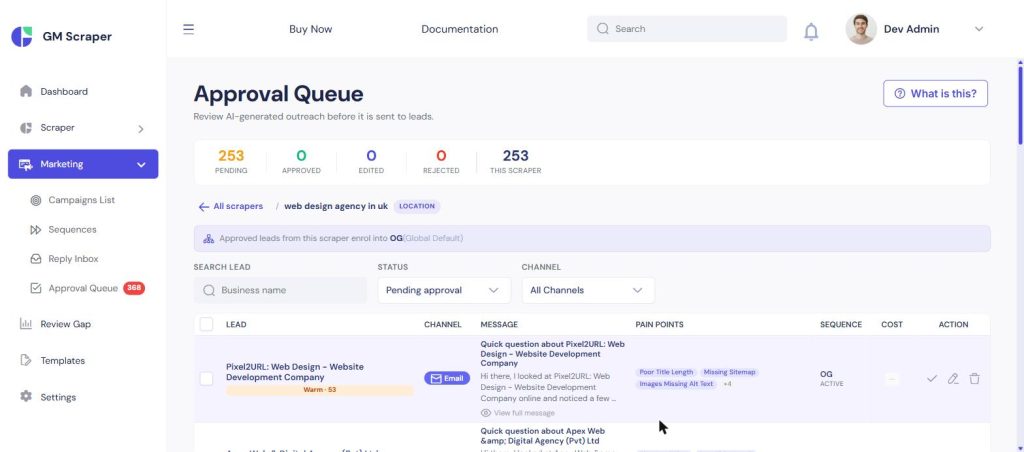
Approval Queue row showing an AI-drafted email with a subject line about the business's website and pain-point tags like Poor Title Length and Missing Sitemap

Step 2 — Nothing Sends Without Approval
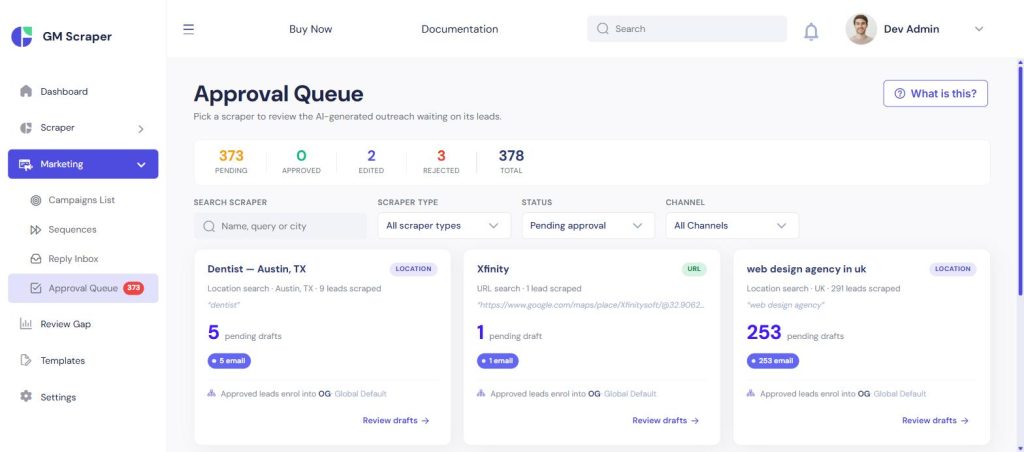
Approval Queue overview with pending, approved, edited, and rejected counts and a card grid of scrapers showing pending draft counts

Every draft sits in a queue until a human reads it — edit it, approve it as-is, or reject it. For agencies sending on behalf of a client’s name, this is the step that makes the whole approach defensible.

Step 3 — Follow-Up Happens on Its Own
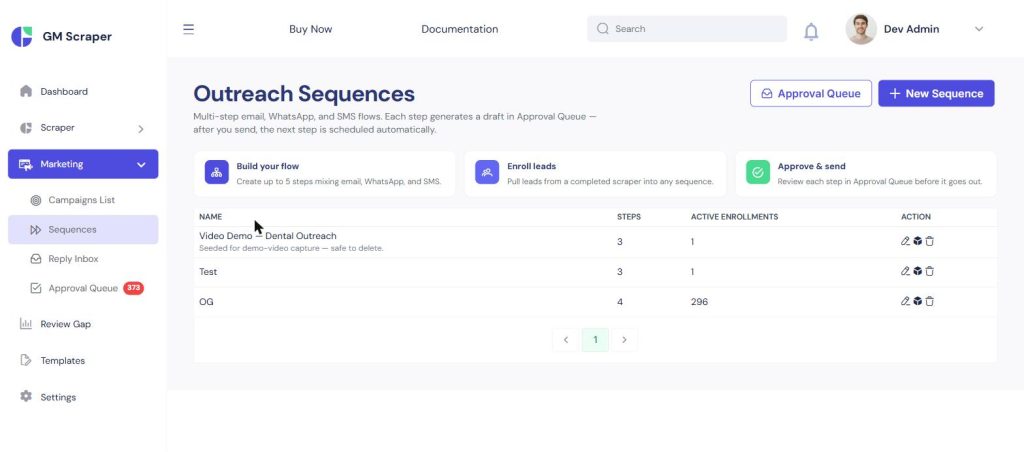
Outreach Sequences list showing sequence names, step counts, and active enrollment numbers

One message rarely closes anything. A sequence — email, then WhatsApp a couple of days later, then SMS — gets built once and reused across every batch of approved leads.
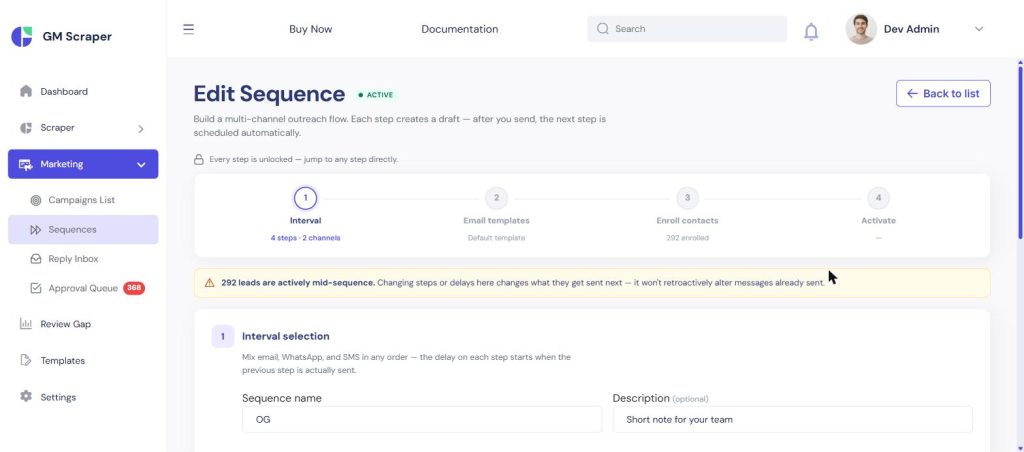
Sequence Builder wizard editing a multi-step sequence with channel and delay settings for email, WhatsApp, and SMS steps

Step 4 — Replies and Booking, Handled
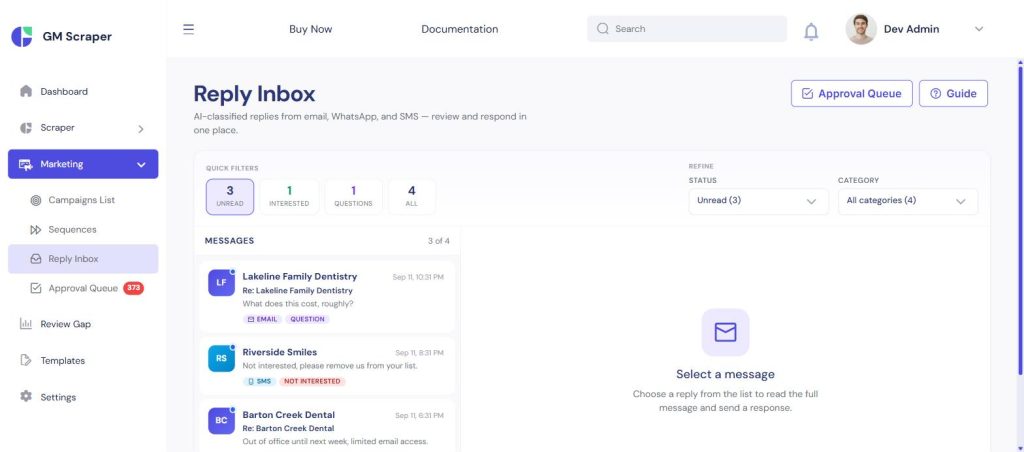
Reply Inbox showing incoming replies automatically tagged Question and Not Interested

Replies get auto-classified — Interested, Question, Not Interested, Wrong Person, Out of Office — and when a lead scores as interested or hot, a booking link gets appended to the conversation automatically:
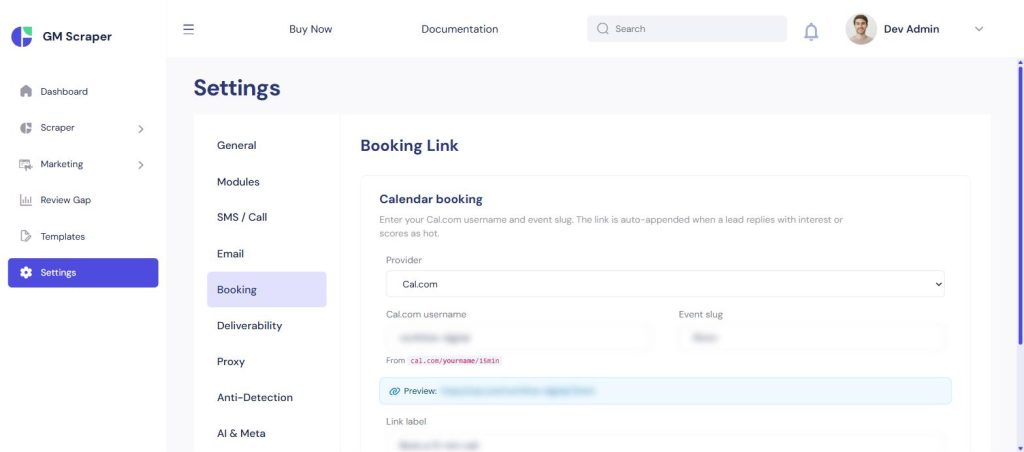
Booking Link settings page with Cal.com provider selected and a preview of the generated booking URL

The Compliance Layer Underneath All of It
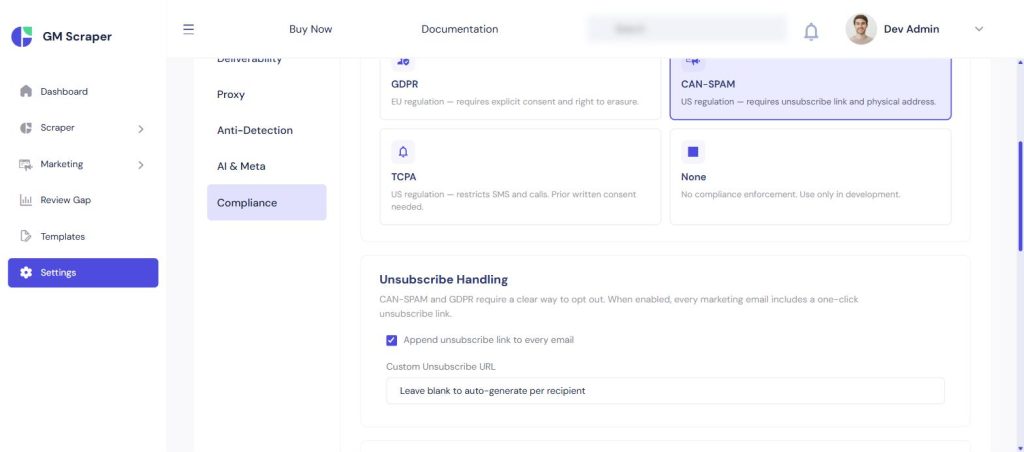
Compliance settings showing GDPR, CAN-SPAM, TCPA, and None as selectable regional compliance modes

Outreach at volume runs into real rules — GDPR, CAN-SPAM, TCPA depending on where leads are. This isn’t a separate step to remember; it’s built into the same pipeline — unsubscribe handling, do-not-contact lists, and sending limits apply automatically regardless of which channel or how a draft was approved.

How It Works, Step by Step

  1. Generate the draft

    AI writes from the scoring findings, not a blank template.
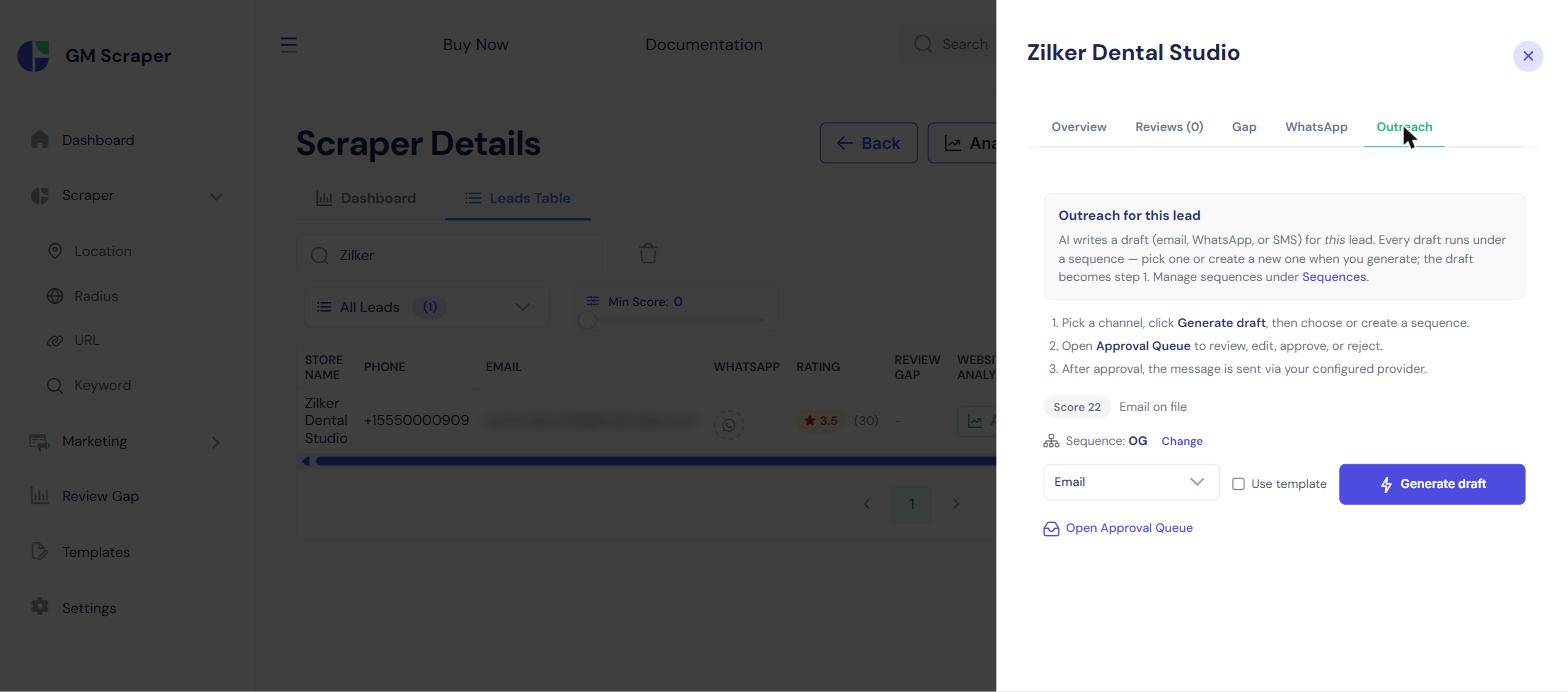
    Outreach tab for a lead showing a channel selector and Generate Draft button, with the lead's score and assigned sequence
  2. Review and approve

    Every draft is human-checked before it sends.
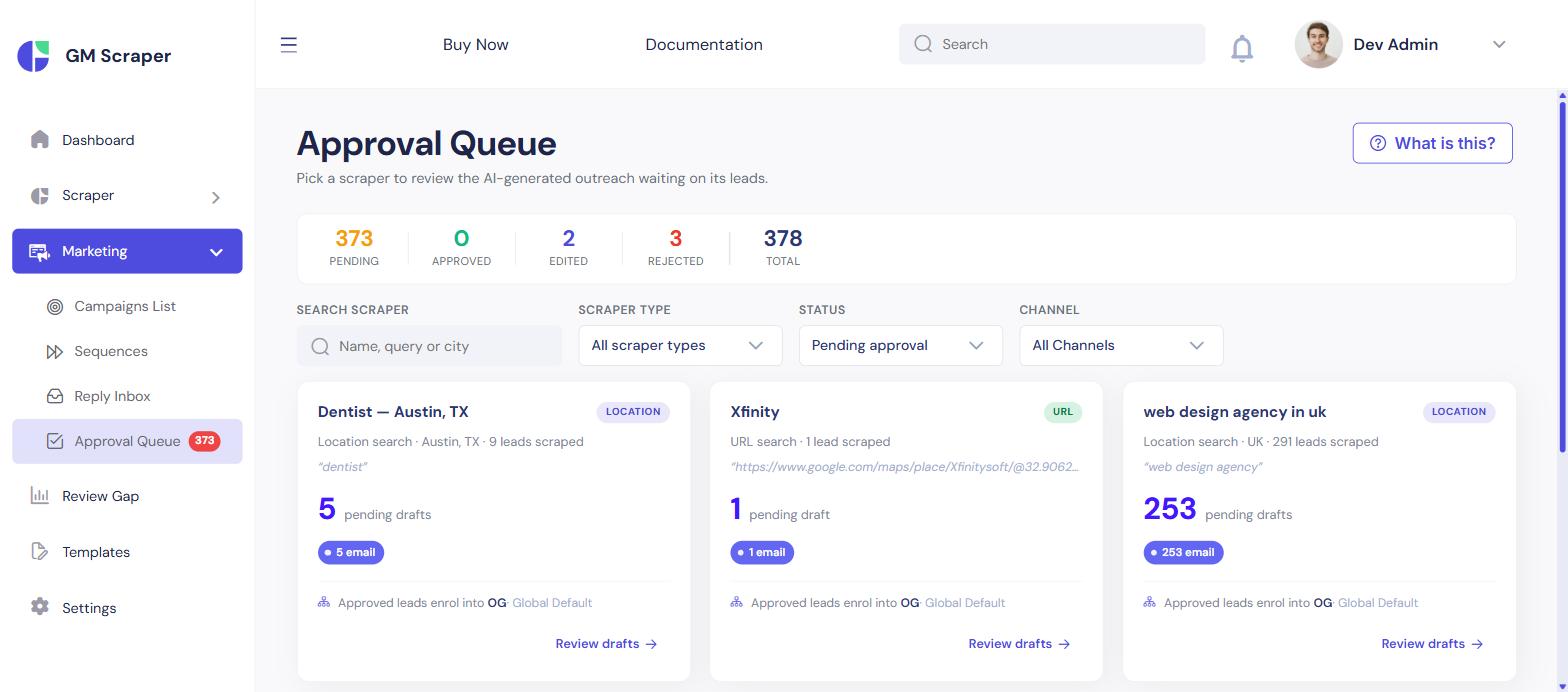
    Approval Queue overview with pending, approved, edited, and rejected counts and a card grid of scrapers showing pending draft counts
  3. Enroll in a sequence

    Follow-up across email, WhatsApp, and SMS runs automatically.
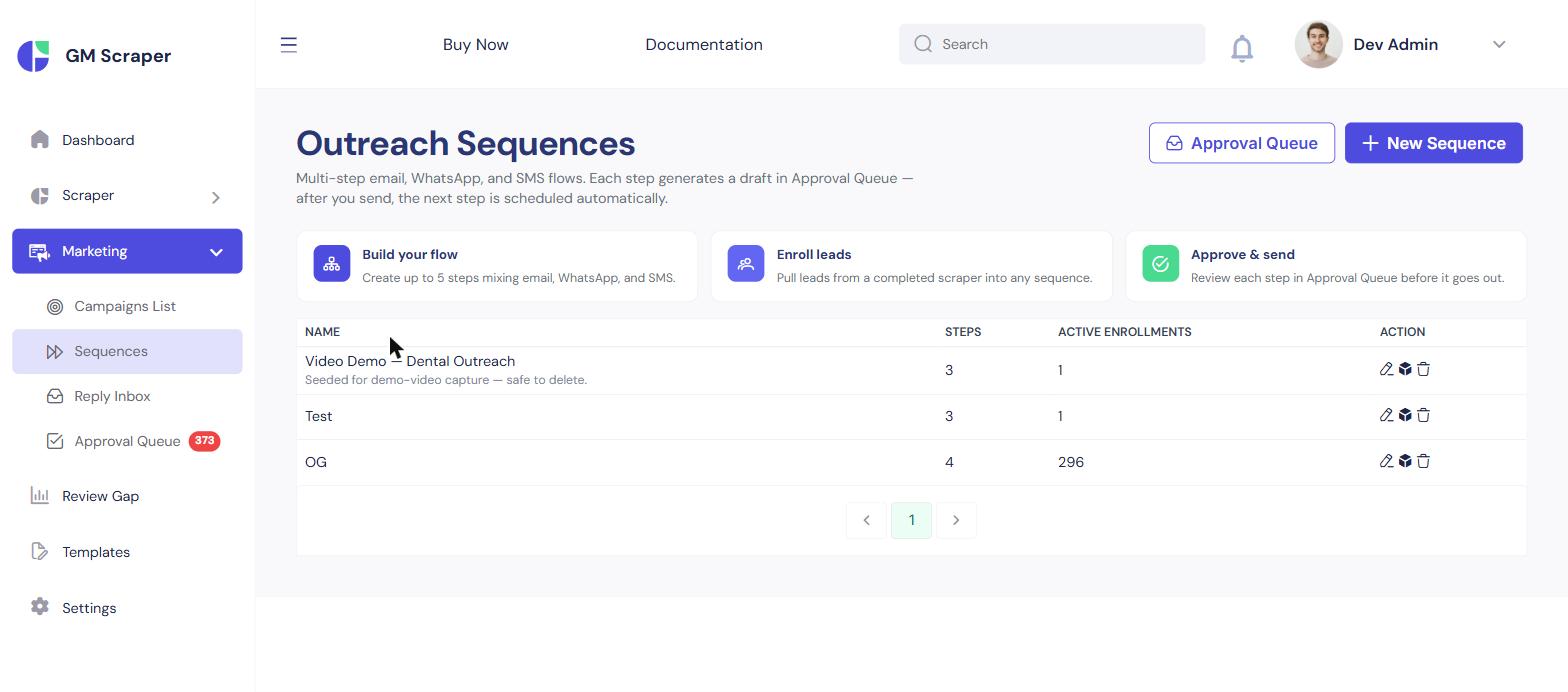
    Outreach Sequences list showing sequence names, step counts, and active enrollment numbers
  4. Let replies and booking sort themselves

    Classification and booking-link insertion happen without manual tracking.
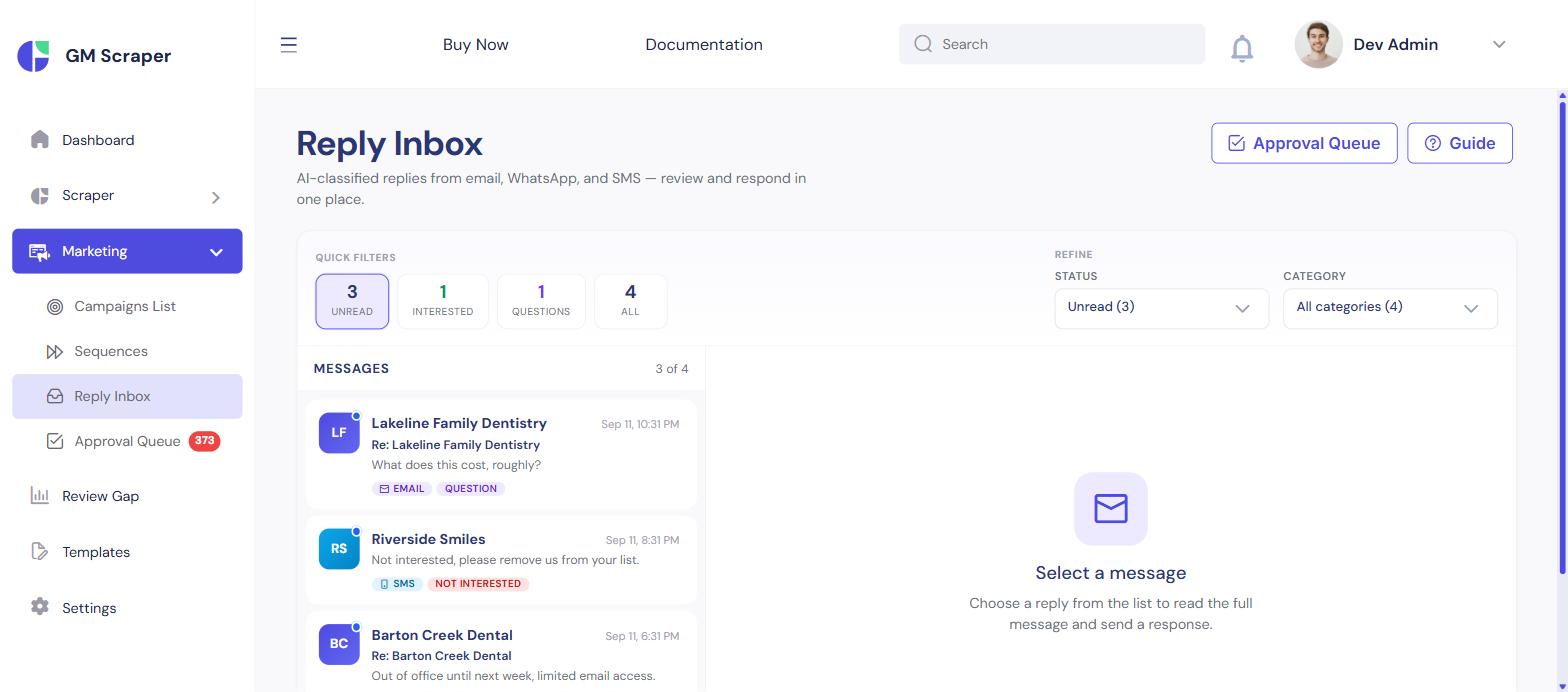
    Reply Inbox showing incoming messages automatically tagged Question and Not Interested

Frequently Asked Questions

  • Do I have to let AI send messages automatically?

    No — by default every draft sits in an approval queue until a human reviews it. There's also a setting to auto-send for hot leads if you'd rather run hands-off, still gated by the same compliance rules either way.

  • How does AutoPitch avoid sounding generic?

    The draft is generated from real findings — a specific website or review issue found during scoring — not a fill-in-the-blank template. See "How to Score and Qualify Local Business Leads Automatically" for where those findings come from.

  • What happens if a lead doesn't reply to the first message?

    The sequence handles it — a non-responder gets a follow-up on the next channel and delay you configured, with no manual tracking required.

  • Is this compliant with GDPR/CAN-SPAM/TCPA?

    AutoPitch includes regional compliance modes, unsubscribe handling, do-not-contact lists, and sending limits — you choose which regulation applies to your outreach, and sends are validated against it automatically. You're still responsible for using the tool within the rules that apply to your jurisdiction and use case.

  • Can I run outreach for multiple clients from one account?

    Yes — sequences, approval queues, and reply inboxes are all scoped per scraper/campaign, so managing several clients' outreach from one instance is the normal use case.

Leave a Comment

Similar Products

AutoPitch: Google Maps Scraper and AI Lead Outreach Automation

AutoPitch scrapes Google Maps, scores every lead with AI, and drafts personalized email, WhatsApp and SMS outreach — with human approval built in.